Showing posts with label Pentesting. Show all posts
Windows Mobile Application Security Testing - Part 5
In this article we will going to learn how to root WP8 Nokia lumia device and inspect internal storage. I am using Nokia Lumia 720 for demo purpose. However Lumia 520, 521, 525, 620, 625, 820, 920, 925, 928, 1020 and 1320 are supported.

XDA developer Heathcliff74 given us powerful tool Windows Phone Internals which allow to unlock the bootloader of selected Lumia Windows Phone models and after unlocking the bootloader, you can enable Root Access on the phone or create and flash Custom ROM's.

OS versions are supported


The following OS versions Root Access can be enabled. To enable Root Access, the bootloader must be unlocked first.
  • 8.10.12393.890
  • 8.10.12397.895
  • 8.10.14219.341
  • 8.10.14226.359
  • 8.10.14234.375
  • 8.10.15116.125
  • 8.10.15148.160
  • 10.0.10512.1000
  • 10.0.10536.1004
  • 10.0.10549.4
  • 10.0.10581.0
  • 10.0.10586.11
  • 10.0.10586.36


In order to root your device you have to carefully follow the instruction. Download the Windows Phone Internals. The instructions you can find in the tool itself. 
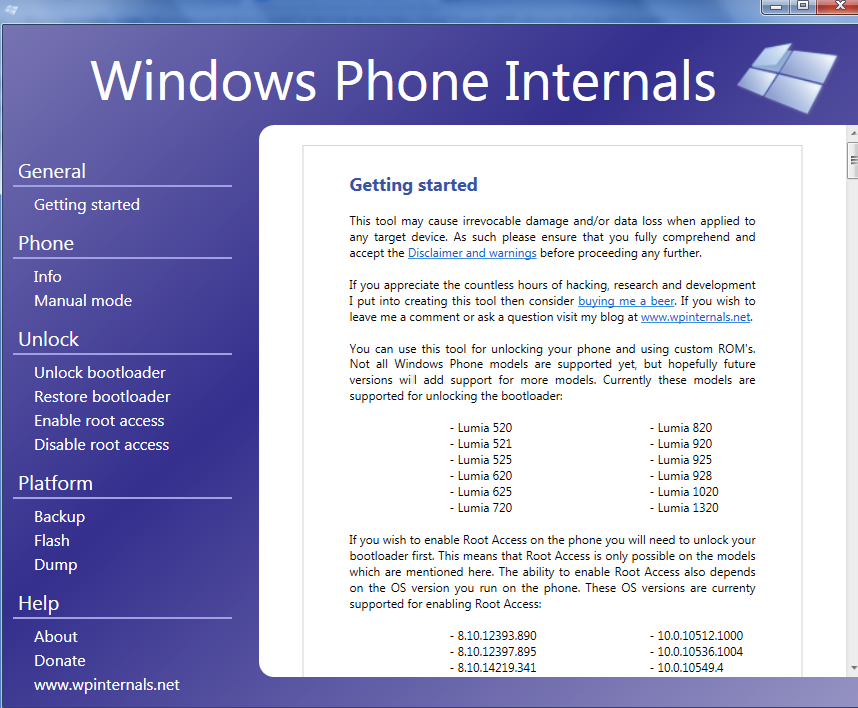


Fig. 1 Windows Phone Internals


I followed instruction for my lumia 720 device only may it's change for your devices, please follow the instruction accordingly.
Before rooting the device we need unlock the bootloader of the device.
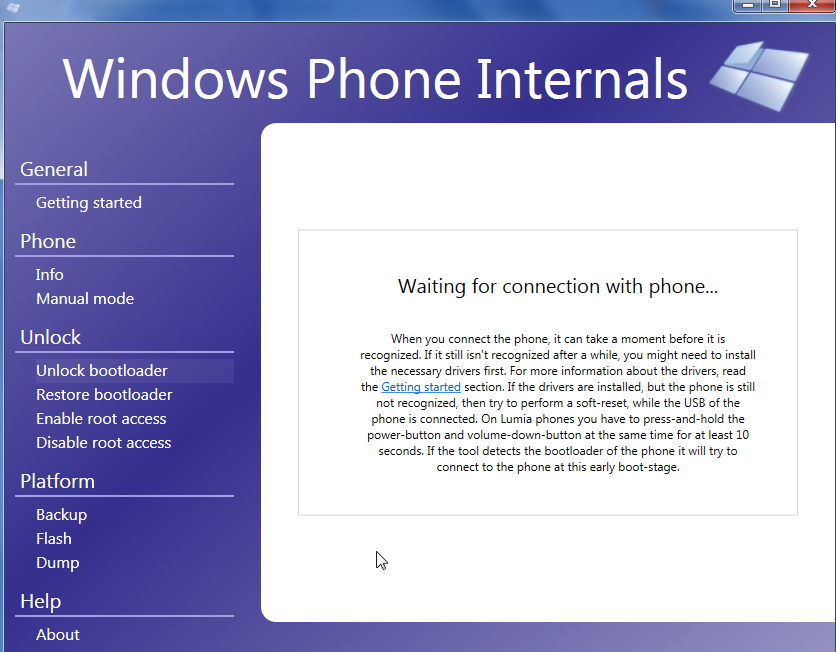

Fig. 2. Windows Phone Internals Connecting


Now Connect you device using USB and unlock your screen. And wait for detection.
In order to unlock the bootloader of device its ask you to phone needs to be switched to flash-mode. Click on “Ok”
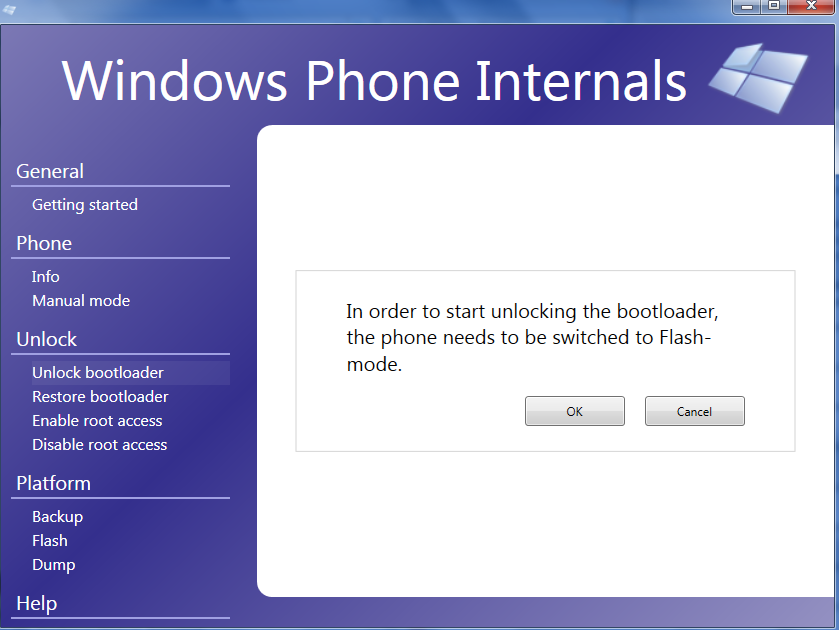


Fig. 3 WP Internals Unlock Bootloader


Now we need FFU-image file which is fresh ROM image of your device. It’s important to get the exact same FFU file for your device. To get the FFU file, you need to use Windows Device Recovery Tool which help you to download FFU file for your device. (You need to switch your device in normal mode by Press and hold the Volume Down and Power buttons at the same time until you feel a vibration (about 10-15 seconds). Your phone will restart automatically.)
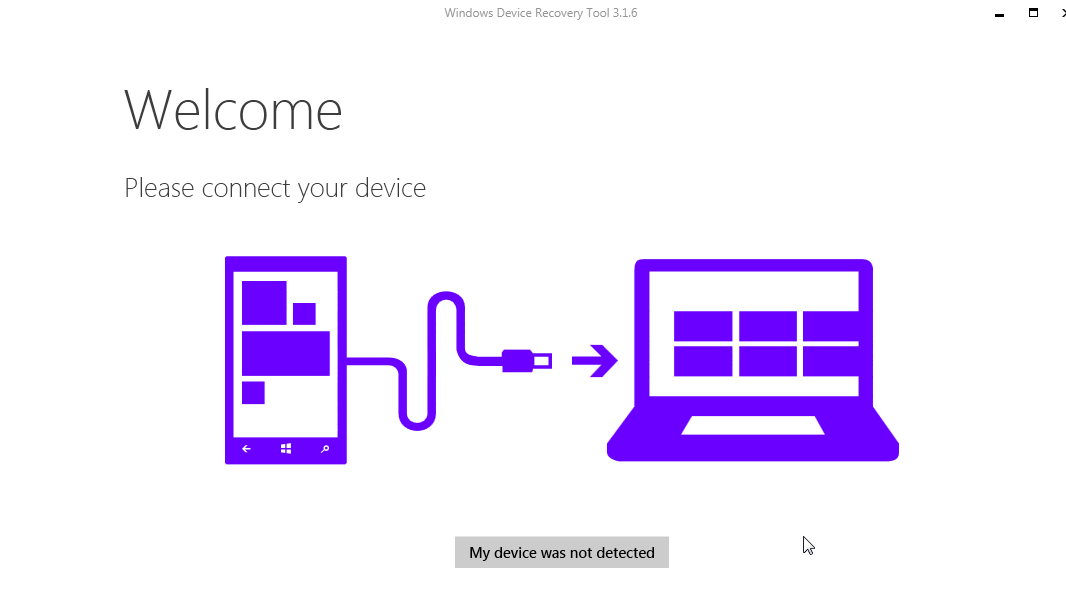


Fig. 4 Windows Device Recovery Tool


Now Connect your device and open Windows Recovery Tool, your device will detect after some seconds.

In case you'r getting error while downloading ROM image from Windows Recovery Tool for your device I recommend you to restart your system as well as your device.

After downloaded the ROM image for your device, the ffu file will be located to path 

C:\ProgramData\Microsoft\Packages\Products\RM-885 in your system.

Now again switch to Unlock bootloader in windows phone internals.

Select your .ffu file (Fresh ROM image) which is located at path 

C:\ProgramData\Microsoft\Packages\Products\RM-885


You should also select a folder where you have Lumia Emergency Flash Loaders. This tool will try to select the Loader that is suitable for your phone.

Select asC:\ProgramData\Microsoft\Packages\Products\RM-885


Now it is very important to use Engineering SBL3 and be careful before using sbl3 file for you device. Make sure that the sbl3 file should work for your device otherwise your device will not work after using wrong sbl3 file.
You can download sbl3 file from xda-developers site for 520, 620, 625, 810, 820, 822, 920, 925 and the 1020.
For me lumia 720 I didn't found sbl3 file but when I research on internet someone posted that lumia 520 sbl3 file will work for lumia 720. So pleae do on your risk.
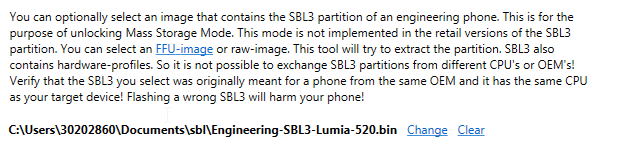


Now click on continue
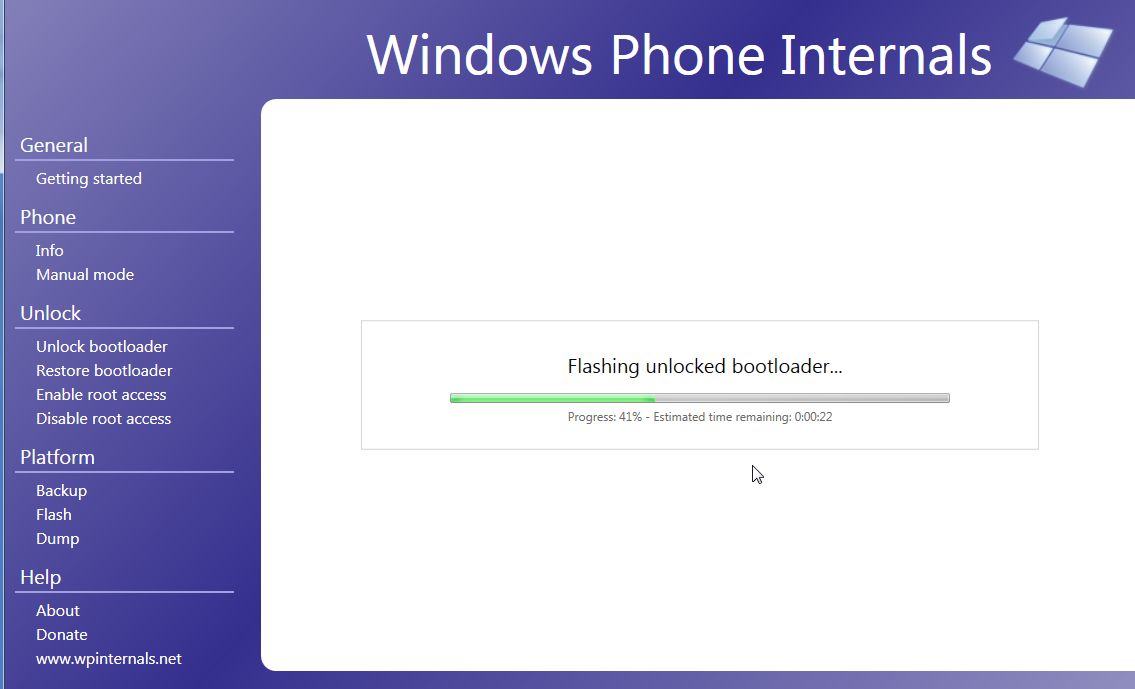


Fig 5. Flashing Unlock bootloader


After the booting your device, as your device bootloader has been unlocked. Now move to “Enable Root Access” and click on Unlock Phone. You device will turned into flash mode and switch to Mass Storage mode. In your system you will see drive “MainOS” get active which is your device internal storage.
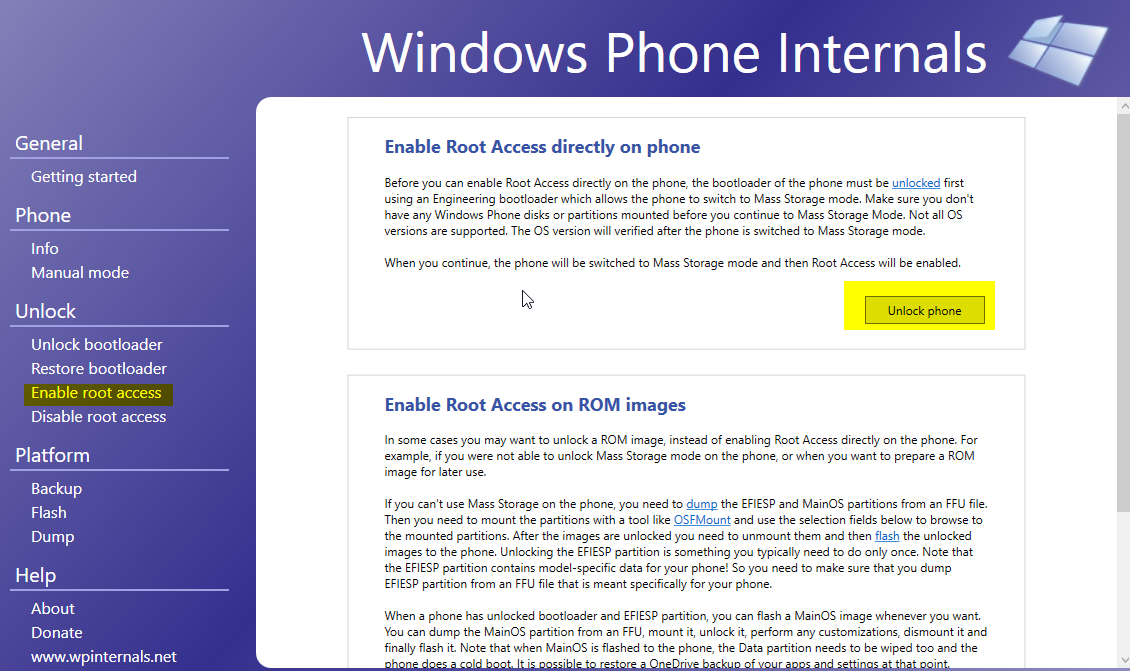
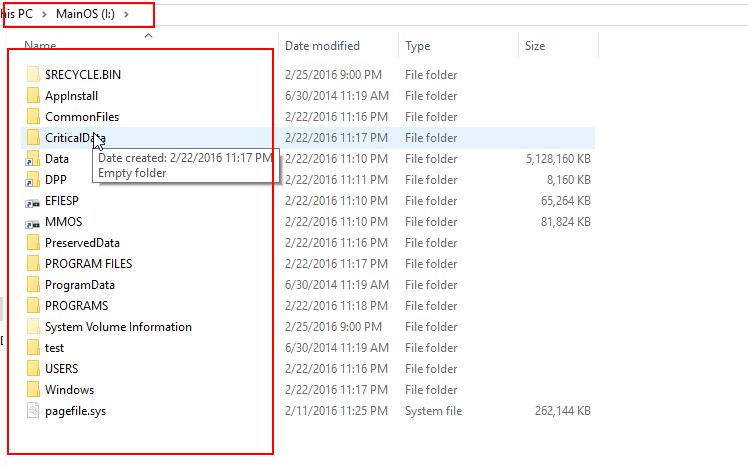
Fig 6. Enable Root access


Fig 7. Device internal file access.


Root Tool


Root tool help you to edit your device registry and provide you to full access on device file system, which can easily access all internal files by only connecting your phone with your system.


Previously Windows phone Internal it give you mass storage mode by flashing your phone, but root tool make your task easier in terms of file access.
Download Root Tool

Now extract the file and Deploy .XAP file into device.
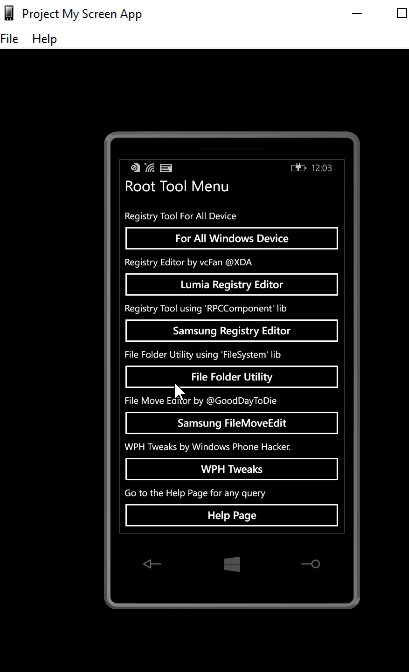


Fig 8. Root Tool


Be careful while using this tool. If you selected any wrong file path or setting may its break your device.

Now select “Lumia Registry Edit”

Go to options >
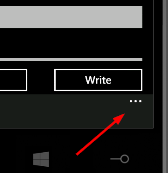

Now click on Templates
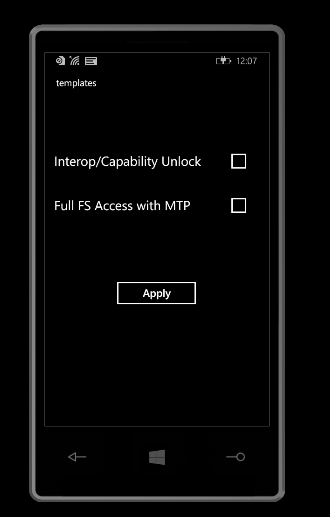


Select both Interop/Capability Unlock and Full FS Access with MTP > Now Apply the setting.
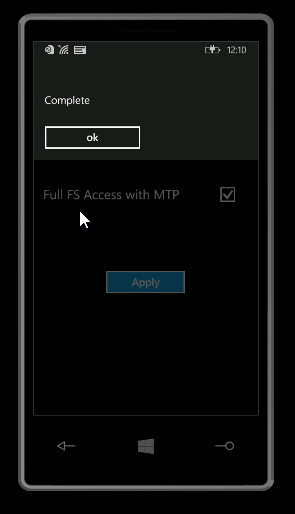


Now you can able to view or edit your device internal storage without switching into flash mode.

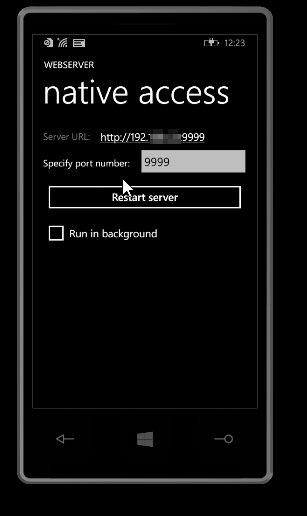
WP8 Native Access Webserver


There is also cool way to access your device file systems. WP8 Native Access Webserver which provide you to install Client WP8 Native Access .XAP file in your device and by using port you can enable your device into webserver. You can download this app from here.


Conclusion:


In this article we learned how we will root our device and inspect internal storage. Next article we will going to learn attack vectors of WP8 application and their vulnerabilities.

Reference:


Windows Mobile Application Security Testing - Part 2
Previous article we learned about the windows phone 8 security basics and their features. In this article we’ll going to learn about windows phone 8 applications and sideloading developer signed app in device.


About XAP Files


XAP is the file format used to distribute and install application software and middleware onto Microsoft's Windows Phone 7/8 operating system, and is the file format for Silverlight applications. Beginning with Windows Phone 8.1, XAP will be replaced by APPX as the file format used to install apps on the Windows Phone platform, a move which was done by Microsoft in order to unify the app development platforms for Windows Store apps and Windows Phone apps.

XAP files are ZIP file formatted packages. The MIME type associated with XAP files is application/x-silverlight-app.

Fig 1. Unzipped XAP file 

If you downloaded app from store and wants to unzip then you can’t able to do so. It's because microsoft signed every app with DRM encryption. However if the app is developer signed then you can easily unzip the XAP file.

Encrypted and Unencrypted XAP file

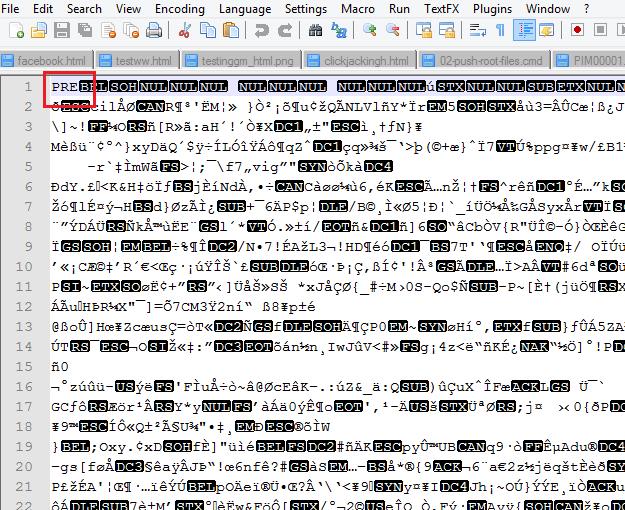
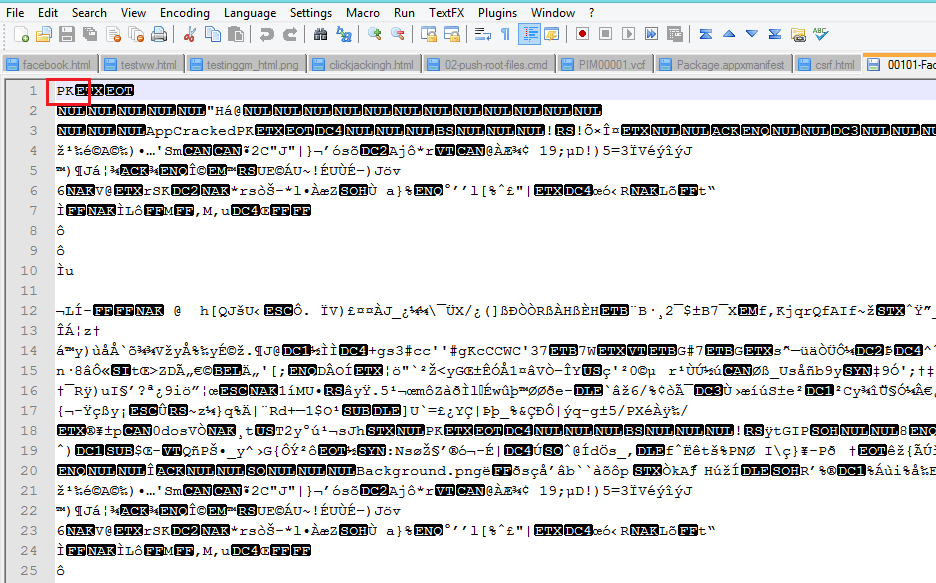
The difference between a XAP file from the app store and an unencrypted XAP can be inspected by opening the XAP file headers in text editor. A limitation of encrypted XAP files downloaded from the app store is that they cannot run in emulators. When conducting penetration tests of a windows Phone application using emulators it's is required to obtain the XAP files of the application compiled by the developer, not from the Windows Store.


Fig 2. Encrypted XAP file
               '
       
Fig 3. Unencrypted XAP file


After some google search I found Youtube XAP unencrypted XAP file from xda-developers forum which help us to understand the Encrypted and Unencrypted applications and difference between them.

Sideloading developer signed app


If you want to perform security testing on your client applications in un-rooted devices then you have to ask them for their developer signed app and by sideloading the App you can able to perform dynamic as well as static analysis.

If you downloaded or installed app from store you will only able to perform dynamic analysis on the app. To perform analysis into internal file system (Isolated storage only) you need to get the developer signed app. Later blog post we will learn inspection of isolated storage.

You can sideload your developer signed app using Application Deployment app which will installed in your system while installing SDK.

Search in your system for “Application Deployment” and open the application. In case you would not found the app then you can use the system path C:\Program Files (x86)\Microsoft SDKs\Windows Phone\v8.0\Tools\XAP Deployment locatedwhere you can run XapDeploy.exe .


Fig 4. Application Deployment App

You can use any developer signed app and sideload app in your device using this application.

Windows Power Tool.


Windows power tool is very useful while doing pentesting on WP8 application. It is developed for the developers to deploy application, testing the app, check isolated storage and other useful functions. You can download this application from codeplex.

However many time I face below error while installing Windows Power tool, may you can also face the same issue.


Fig 5. Windows Power Tool Error 


So it's better to install offline file which you can find from XDA Developer forum. Download the WPPowerToolsStandaloneAmir.zip file and extract the file.

Now run the WindowsPhonePowerTools.exe file.


Fig 6. Windows Power Tool


In order to connect your device with windows power tool you have to unlock your screen and then click on Connect.

After you have successfully connected with windows power tool you can able to install your developer XAPs file and other useful task able to perform for analysis the application.


Fig 7. Windows Power tool feature.


Deploy XAPs easily with WPV Xap Deployer


Project My Screen App


Microsoft has developed application for users to project phone screen to an external display which can using USB cable and connect with system to project phone display on systems.

This app is useful for us while doing pentesting on Windows mobile application to get the display on our system.

You can download application from Microsoft site Project My Screen App


Fig 8. Project My screen Application.


Conclusion :

In this article we understanding of how WP8 applications are packaged and distributed. Also we now know the sideloding developer signed app into device. Next article will learn how will do dynamic analysis on WP8 application using Device.

Windows Mobile Application Security Testing - Part 1

In this article series we will learn about the tool and technique required to perform WP application security assessment. Also we’ll create Window mobile application testing environment to perform security assessment on WP applications.

Introduction: Windows phone


Windows Phone is a proprietary smartphone operating system developed by Microsoft. It is the successor to Windows Mobile, although it is incompatible with the earlier platform. With Windows Phone, Microsoft created a new user interface, featuring a design language named "Modern" (which was formerly known as "Metro"). Unlike its predecessor, it is primarily aimed at the consumer market rather than the enterprise market. It was first launched in October 2010 with Windows Phone 7.

Windows Phone 8


WP8 runs ARM hardware architecture, similar to iOS, Android, and Blackberry. WP8 migrated to the Windows NT kernel instead of Windows CE which WP7 used. WP8 also uses the Windows Phone Runtime application architecture, not identical to WinRT, to allow developers convergence between Windows 8 and WP8. Applications for WP8 may be coded in .NET (C# or VB.NET) and C++ but not JavaScript.

WP8 being Windows NT kernel based allows for multiple benefits from a end user security perspective. These security controls do not help a tester but do help make the device more secure and attractive to enterprise users and decision makers.

● 128-bit BitLocker for full disk encryption
● NTFS file system
● Sandboxed apps – no access to other apps
● SafeBoot: Secure boot with Unified Extensible Firmware Interface (EUFI)
● This makes it difficult for software without correct digital signature to be loaded on your Windows Phone. Something jailbreakers will need to bypass. More on the jailbreaking later.
● TPM 2.0 standard, requires unique keys to be burned into the chip during production
● All Windows Phone 8 binaries must have legit digital signatures from Microsoft to run

New Security Features in Windows Phone 8.1

Microsoft added some security features in WP 8.1 to secure users. A Windows Phone 8.1 mobile device is malware resistant as it uses the same technologies that are used by Windows 8.1 desktop operating system. It secures the boot process, specifically UEFI and its Secure Boot component. UEFI Secure Boot verifies that the boot loader is trusted, and then Trusted Boot protects the rest of the startup process by verifying that all Windows boot components have integrity and can be trusted. If any malware has modified any file, Trusted Boot prevents such files from launching. Unsigned apps not from the Windows Store, are unable to run on Windows Phone.

● Secured enrollment with MDM systems
● Security policy management
● Lock down the phone to a specified set of applications and settings (Assigned Access)
● Automatically initiate VPN connections (auto-triggered VPN)
● Remote Assistance
● Remote business data removal
● Encryption of apps and confidential organizational data on removable storage
● Support for Secure and Multipurpose Internet Mail Extensions
● Support for enterprise Wi-Fi connectivity
● Support for virtual smart cards
● Support for new virtual private network (VPN) tunnel types.

Digital Right Management (DRM)


Microsoft signing all app in order to run into Locked device (non-developer unlocked) it’s similar to apple requires that code have a signed a binary for it to run non-jailbroken iOS device.

Windows Phone 8 all app are obtained via the windows phone store. Microsoft defined all application submitted to the store are subject to Microsoft defined submission process before being accepted and code signed with a certificate issued by the aptly named Certification Authority, Microsoft Marketplace CA. Signed apps are then made available for purchase or free download to the general public who own Windows Phone 8 devices. In addition to being codesigned, applications from the Store are protected using the FairPlay DRM technology. Tampering with the XAP or APPX files being installed results in the installation being halted.

All applications have to be Microsoft signed to run on WP8 or 8.1 devices. When developer mode is unlocked on a device, applications can be sideloaded, but in the context of Store applications running on the device of a standard consumer, all apps must be signed. We will learn about sideloading later.

Application Sandboxing

Windows phone 8.x closed architecture and applications are sandboxed to control their access to system resources to prevent them from accessing other application data. In windows phone 8.x all third-party applications from the store run in AppContainers.

AppContainer

AppContainer provides high level process-isolation mechanism which offers security permissions check in operating system resources such as file, registry and other resources. Windows phone 8.x all application run inside an appContainer and check app can be only its own private file sandbox. If application wants to read write outside of it, including other application data its fail.

Capabilities

Capabilities is to ability of application to access OS services such as camera or networking which controls by that app capabilities. Capabilities are also used to provision the security of the least privilege chamber (LPC) and reduce the attack surface by only provisioning ACLs for what the application requires. Applications should only be assigned capabilities which they require to perform their functionality and any unused capabilities removed.

ID_CAP_NETWORKING—Outbound and inbound network access
ID_CAP_PHONEDIALER—Access to the dialer functionality
ID_CAP_MICROPHONE—Access to the microphone API
ID_CAP_LOCATION—Access to geolocation data
ID_CAP_ISV_CAMERA—Access to device’s built-in camera


<Capabilities>
      <Capability Name="ID_CAP_NETWORKING" />
      <Capability Name="ID_CAP_WEBBROWSERCOMPONENT" />
      <Capability Name="ID_CAP_CONTACTS" />
      <Capability Name="ID_CAP_PHONEDIALER" />
</Capabilities>


Capability elements are entries in the manifest file that notify the user while installing the app of special software capabilities that your app receives.

If you want to check more capability and its function you can check this in Microsoft site.

Prerequisites

● Windows 8 OS
● Physical Device or Emulator
Windows Phone SDK 8.0 (You can download from here http://download.microsoft.com/download/9/3/8/938A5074-461F-4E3D-89F4-5CE2F42C1E36/wpsdkv80_enu1.iso)


Setup Environment for Windows Mobile Applications testing

Windows 8 OS

For test environment its required windows 8 OS because of windows phone SDK supports only on windows 8 Operating system.

We also need the following system requirement for the windows application testing lab.

System requirements:

In the BIOS, the following features must be supported:
  • Hardware-assisted virtualization.
  • Second Level Address Translation (SLAT).
  • Hardware-based Data Execution Prevention (DEP).
  • 4 GB or more of RAM.
  • 64-bit version of Windows 8 Pro edition or higher.
  • Network requirements:
  • DHCP.
  • Automatically configured DNS and gateway settings.
  • In Windows, Hyper-V must be enabled and running.
  • You have to be a member of the local Hyper-V Administrators group.
Windows Phone SDK tool

Windows SDK tool is the core tool for development and security assessment on windows 8.x. SDK tool included two of the most important tools are included one is Visual Studio and another is the emulator. Both tool you can use for reviewing code and running apps from source respectively.

Visual studio is Microsoft official integrated development environment and its used for development of WP applications.

You can use Visual Studio in you security assessment for
  • Manually reviewing source code
  • Running project from source on an emulator and devices
  • You can use for debugging tools on source code.
Windows SDK installation

Download and install windows phone SDK 8 in your system. WP 8 SDK provides you with the tools that you use to development and deploy application in device. Also it’s useful for further analysis.

You can download windows sdk as .iso format which can be write the image file to blank DVD or use mount the image file virtual as DVD devices like DAEMON Tools lite.


Fig.1 Windows SDK installation

Windows phone Developer unlocked Device (non-Jailbroken Device)

Microsoft has provided feature to developers, sideload apps in device for debugging and testing purpose. You can unlock your device by registering your phone with windows developer phone registration which will provide you to sideload your developer signed app for testing purpose. Only the limitation of unlocked device that you can only install maximum 3 developer signed apps.

We can use Developer unlocked device to sideload developer signed app and use for further WP application security analysis.

To unlock the device you must should install SDK and by using developer phone registration you can successfully unlock your device.

Registering your phone:

To register a phone, use the Windows Phone Developer Registration tool. This is a stand-alone tool that’s installed as part of the Windows Phone SDK.

Turn on your phone and unlock the phone screen.


Fig.2 Windows phone screen.

On your phone ensure the date and time should correct.

Connect your phone by using USB cable.

On your system search app “Windows Phone Developer Registration” in start screen

In case unable to find the app then you can also use this path to locate the developer registration app: C:\Program Files (x86)\Microsoft SDKs\Windows Phone\v8.0\Tools\Phone Registration\PhoneReg.exe


Fig.3 Path of developer registration app

Run the app PhoneReg.exe


Fig.4 Windows Registration form

Ensure that your phone should be unlocked the phone screen.

Now click on the register and provide your any Hotmail or Microsoft account. (If you do not have Microsoft account, recommend you to register account in Hotmail)

Fig 5. Microsoft Login form

Congratulation!!! You have successfully registered your device and unlocked your device.


Fig 6. Successfully Unlocked the windows Phone.

Now you can now able to sideload apps (only dev signed app) in your device.

Conclusion:

In this article we learned Windows Phone application security basics and setup the environment. Next article we learn about application files and how we’ll sideload the app and which tools we need for deploy the developer signed applications.

Reference:

https://labs.mwrinfosecurity.com/system/assets/651/original/mwri_wp8_appsec-whitepaper-syscan_2014-03-30.pdf

https://msdn.microsoft.com/library/windows/apps/jj206936(v=vs.105).aspx

https://dev.windows.com/en-us/downloads/sdk-archive

https://msdn.microsoft.com/en-in/library/windows/apps/jj206936(v=vs.105).aspx#BKMK_Softwarecapabilities


Powered by Blogger.