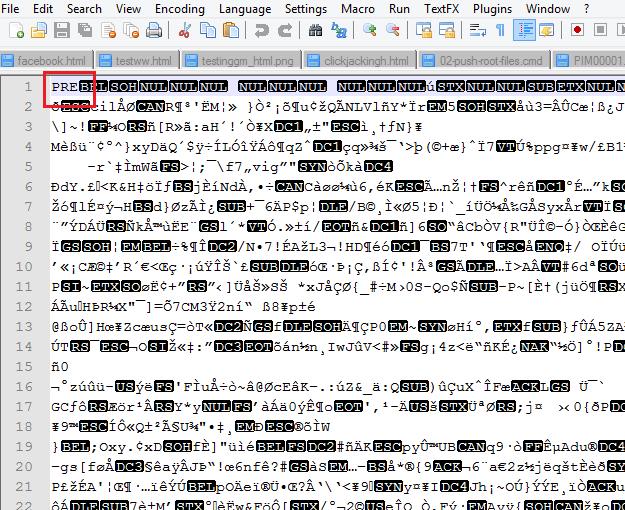
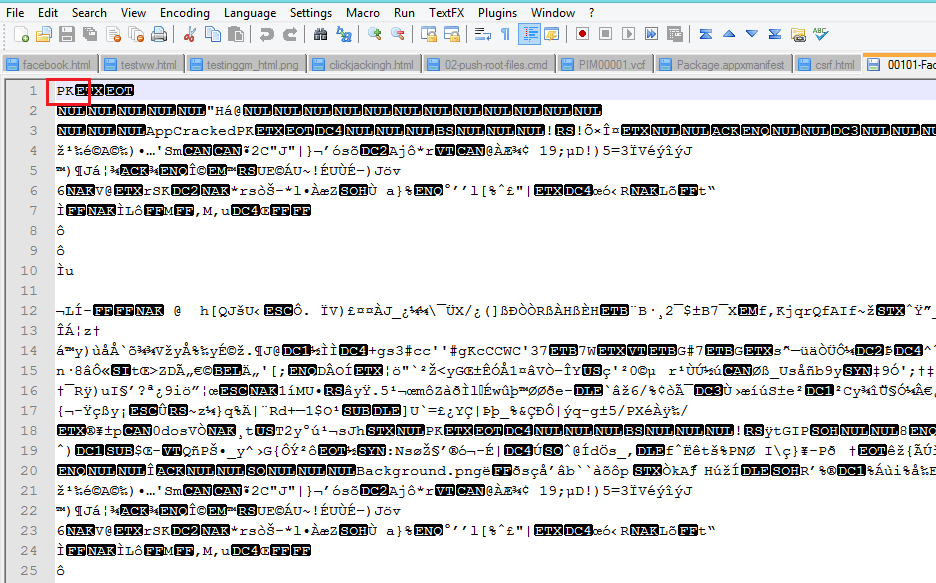
Previous article we learned setup proxy with device and perform dynamic analysis on the WP8 Applications. In this article we are going to learn analysis of Isolated storage or local file system using Windows power tool.
In case you haven't rooted your device and wants to analysis dynamically local storage of the application, then this article will help you to check local storage of the application. You can able to check local storage or isolated storage for only developer signed apps using Unlocked device. If you haven't Unlocked your device yet then I recommend you to unlock your device using my part 1 article.
So next we need one developer signed application for our demo purpose right. In my previous article I mention found youtube developer signed app from XDA forum. You can also download this application for your learning purpose from here.
Isolated storage
Isolated storage is used to store local data on a Windows Phone. It is "isolated" because other applications can't access this data.
All I/O operations are restricted to isolated storage and do not have direct access to the underlying OS file system, which helps to provide security and prevents unauthorized access and data corruption from other apps. If you want to share data between two applications, you will need some kind of cloud-based service that can share that data for you.
Microsoft has provided two way to store data locally for their developers. The first way is to collection of name/value pairs call IsolatedStorageSetting and other way is through the creation of actual files and folders called IsolatedStorageFile. We will check this later while doing static or reverse engineering analysis.
All I/O operations are restricted to isolated storage and do not have direct access to the underlying OS file system, which helps to provide security and prevents unauthorized access and data corruption from other apps. If you want to share data between two applications, you will need some kind of cloud-based service that can share that data for you.
Microsoft has provided two way to store data locally for their developers. The first way is to collection of name/value pairs call IsolatedStorageSetting and other way is through the creation of actual files and folders called IsolatedStorageFile. We will check this later while doing static or reverse engineering analysis.
Windows Phone power Tool

Fig. 1 WP Power Tool
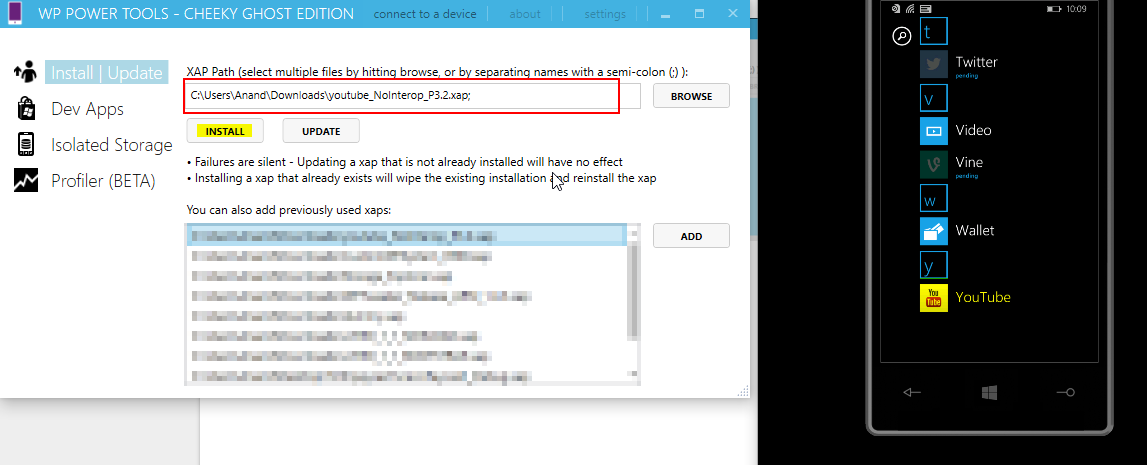
Fig 2. Deploy Application
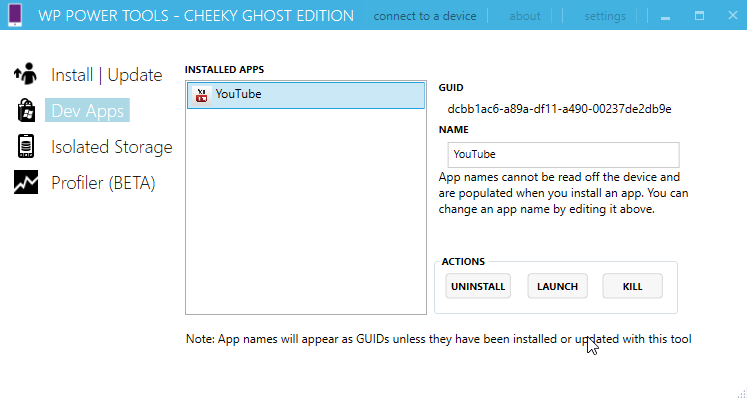
Fig 3. Application Information
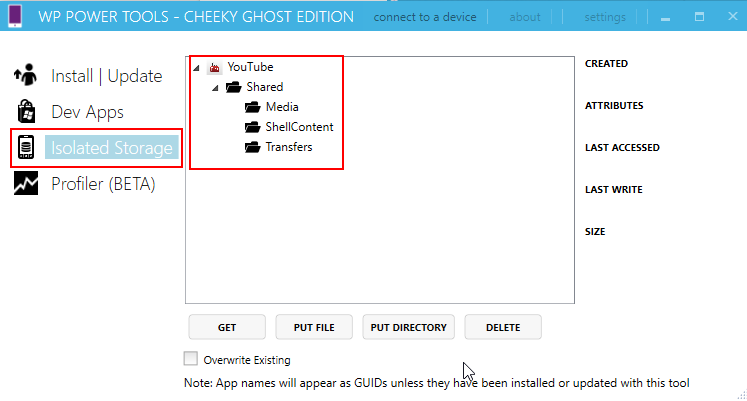
Fig 4. Isolated Storage
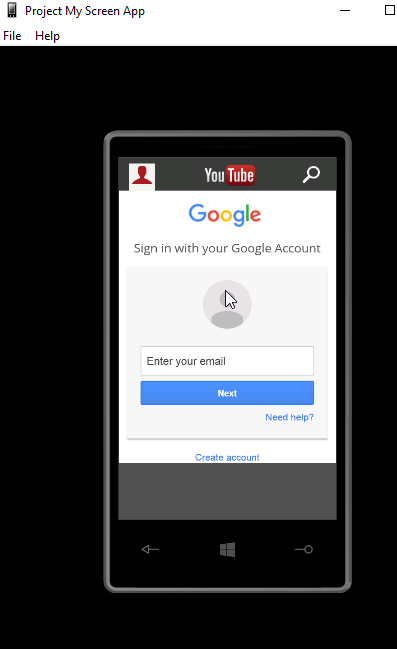
Fig 5. Youtube login form.
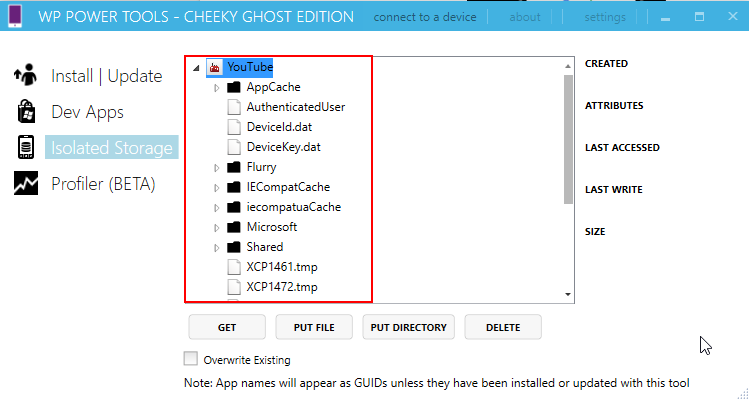
Fig 6. Isolated Storage Data
Isolated Storage Explorer

Fig 7. IsoStore Spy App.
Isolated Storage Explorer (ISETool.exe)
C:\Program Files (x86)\Microsoft SDKs\Windows Phone\v8.0\Tools\IsolatedStorageExplor
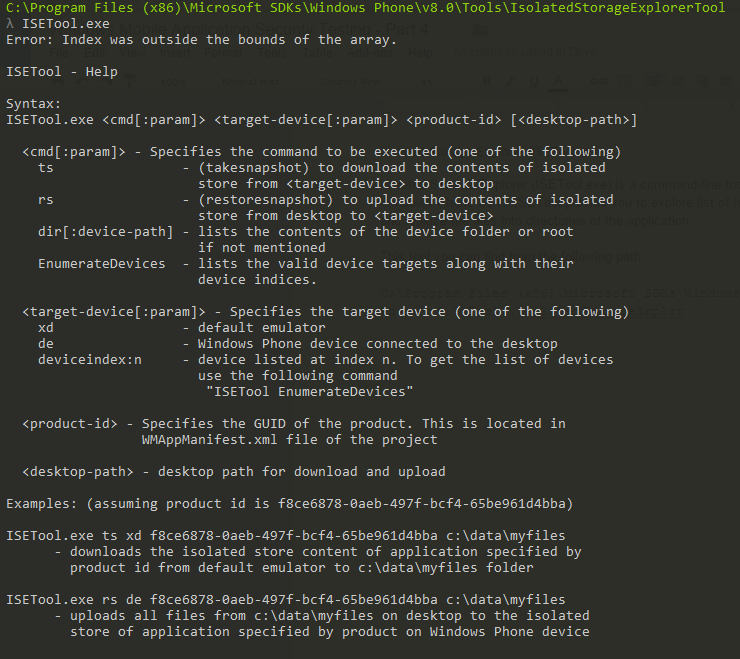
Fig 8. ISETool
ISETool.exe <cmd[:param]> <target-device[:param]> <product-id> [<desktop-path>]

<cmd[:param]> - Specifies the command to be executed (one of the following)
 ts -(takesnapshot) to download the contents of isolated store from <target-device> to desktop
    rs -(restoresnapshot) to upload the contents of isolated store from desktop to <target-device>
    dir - lists the contents of the device folder.
    EnumerateDevices  - lists the valid device targets along with their device indices.

<target-device[:param]> - Specifies the target device (one of the following)
    xd - default emulator
    de - Windows Phone device connected to the desktop
    deviceindex:n - device listed at index n. To get the list of devices use the following command
                    "ISETool EnumerateDevices"

<product-id> - Specifies the GUID of the product. This is located in
                 WMAppManifest.xml file of the project

<desktop-path> - desktop path for download and upload
ISETool EnumerateDevices
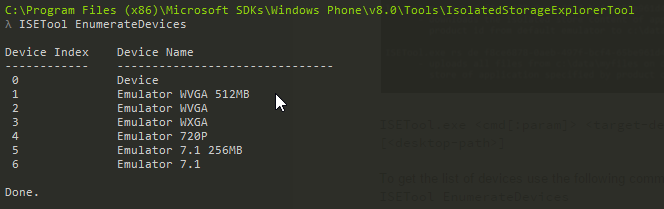
Fig 9. To get the list of Devices
If you want to get application Product ID or GUID of the product which is located in WMAppManifest.xml. In order to get manifest file you have change application extension .xap to .zip and extract the file. (Only this is for developer signed applications)
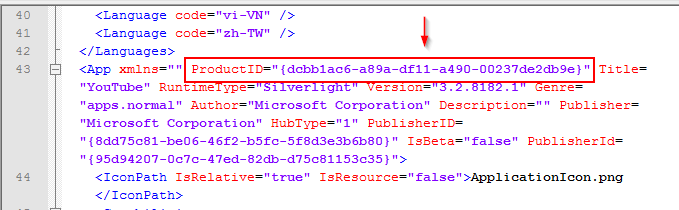
Fig 10. Application ProductID
C:\Program Files (x86)\Microsoft SDKs\Windows Phone\v8.0\Tools\IsolatedStorageExplorerTool\ISETool.exe dir de dcbb1ac6-a89a-df11-a490-00237de2db9e
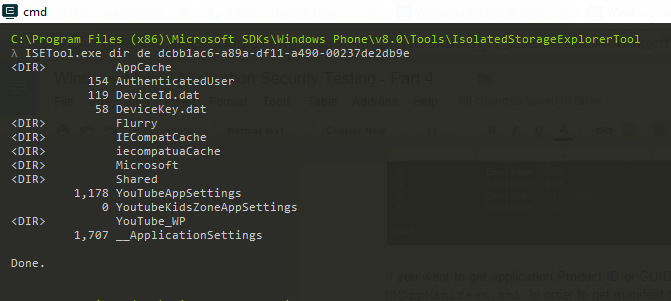
Fig 11. List of file and Directory
C:\Program Files (x86)\Microsoft SDKs\Windows Phone\v8.0\Tools\IsolatedStorageExplorerTool
λ ISETool.exe ts de dcbb1ac6-a89a-df11-a490-00237de2db9e G:\test\

Fig 12. Exact contents of isolated Storage
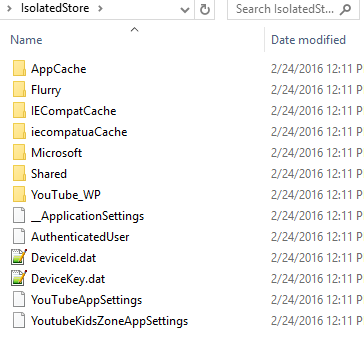
Fig 13. Download File and Folder
Conclusion :
In this article we learned about Isolated Storage, tools and technique to inspect isolated files and folders. You can analysis the data of application and how/which data storing inside isolated storage. Later will learn more about the file and their functionality in terms of security.