Showing posts with label WP8. Show all posts
Windows Mobile Application Security Testing - Part 3

In this blog post will going to learn how will perform Dynamic analysis on Windows phone 8 Mobile applications. Previous article we learned WP8 applications and sideloading developer signed apps.

Dynamic Analysis


Dynamic analysis is way to audit any mobile applications communication which application can communicate or give away data in two way communicating with server or storing to and loading from device storage. We can dive into how to intercept request using proxy tool and how to analysis isolated storage data into device. We can analysis traffic between device and server by intercepting and modifying parameter. For application storage we can just observe the results the data that application has saved.

OWASP Zed Attack Proxy (ZAP)


Most of them are familiar with Zap proxy and using while doing Application penetration testing. Zap proxy is powerful proxy tool for intercepting traffic between client and server. It is open source tool. You can download from here.
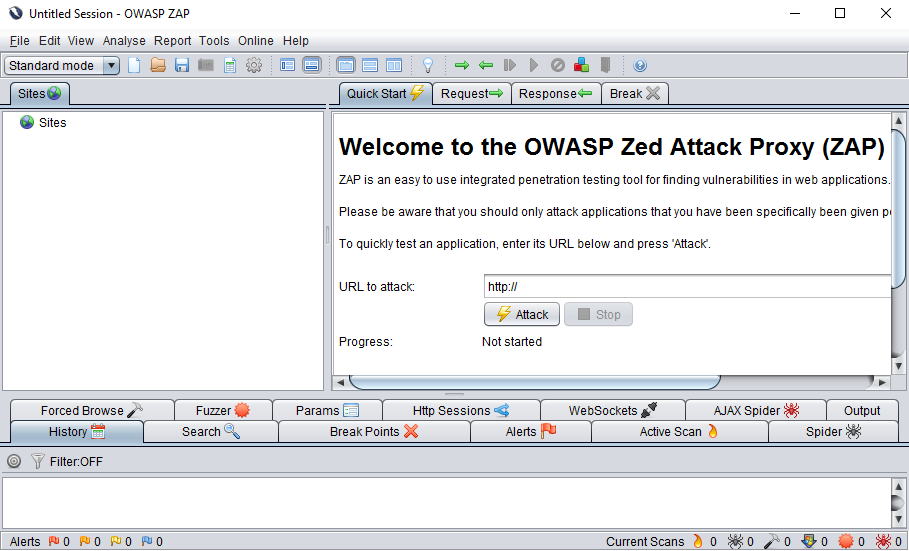

Fig 1. ZAP proxy tool.

Intercept HTTP and HTTPS Traffic


In order to setup zap proxy and intercept request you have to install zap proxy properly. It is important to connect you system and device with same wifi network.

Check your system IP address, if you connected with Wifi you should also connect your device with same Wifi.
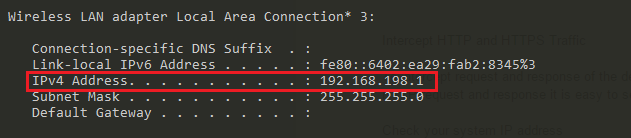

Fig. 2 System interface IP address.


Now you have to put your interface IP address inside zap proxy setting. Go to Tools > Options (Ctrl+Alt+O) > Local proxy

Address would be your system interface IP address (in my case 192.168.198.1)

Port you can put as 8080
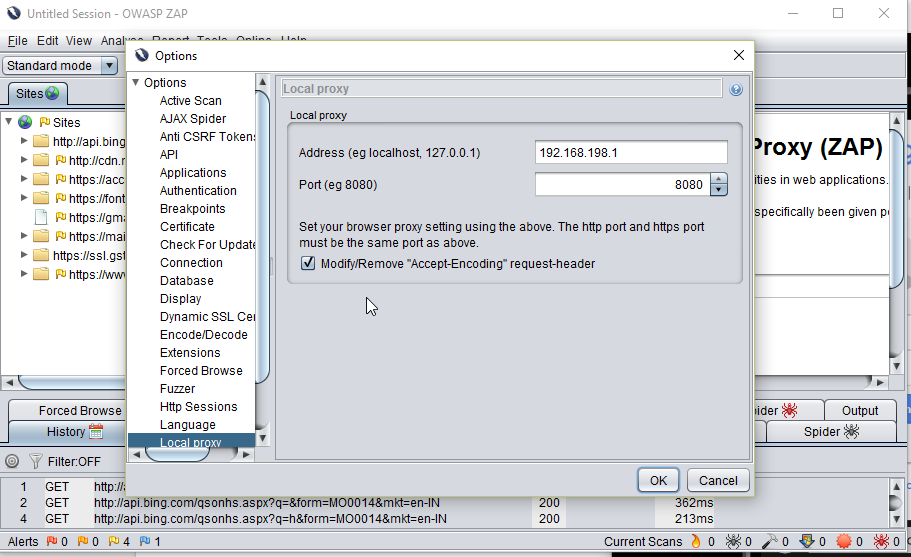

Fig 3. ZAP proxy setup.


Now open you device and go to setting > WiFi > select your connected wifi network.
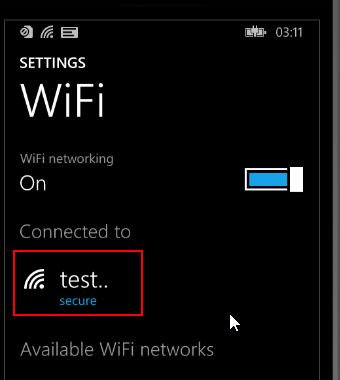

Fig 4. Device Wifi


Turn on Proxy and provide your system interface IP i.e 192.168.198.1 in Server/URL, 8080 in port and save the setting.
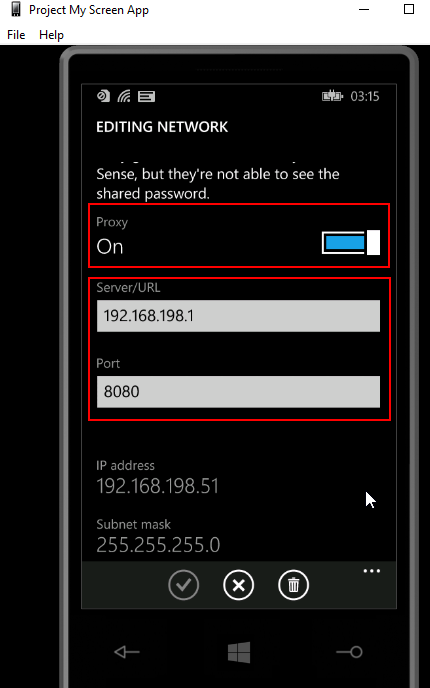

Fig 5. Device Wifi Setup.


Installing Certificate


It is very important to install ZAP certificate inside your device to intercept HTTPS enabled applications. Without certificate you can’t intercept the HTTPS request and response. In order to install certificate first you have to export certificate from ZAP and then install certificate by sending certificate into device using e-mail. You can also install certificate using SD card but it may not work properly.

Export the certificate from zap. Go to Tool > Options > Dynamic SSL Certificates (Ctrl+Alt+O). Now save the certificate .


Fig 6. ZAP SSL Certificate
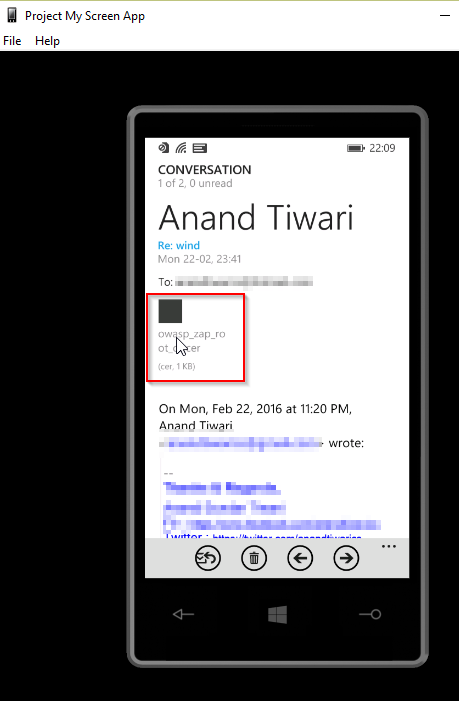
Now you can save this certificate and send certificate using any E-mail. In device download certificate from the attached file. Make sure that the certificate extension should be .cer


Fig 7. Attached ZAP certificate in Mail.
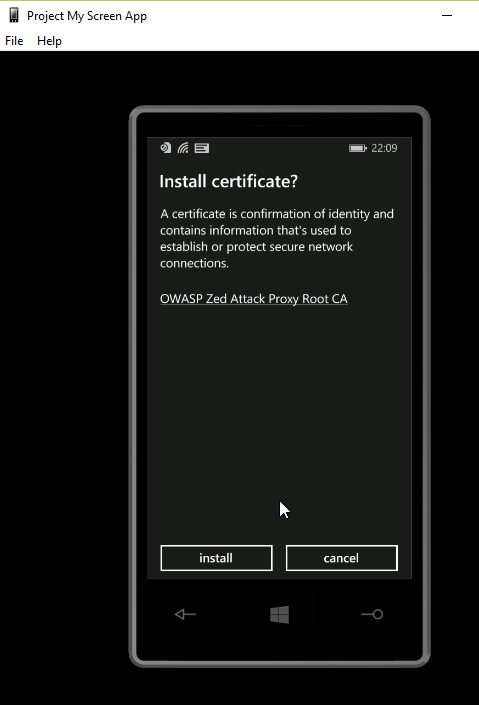
And then install the certificate.


Fig 8. Certificate Installation.


In windows phone you can only install any one certificate at a time. Also WP8 does not provide a way to delete it later on.

After installing ZAP certificate you can able to intercept HTTPS enabled applications in your devices.

Most of peoples are comfortable with Burp proxy. In similar way you can also setup BurpProxy and certificate.

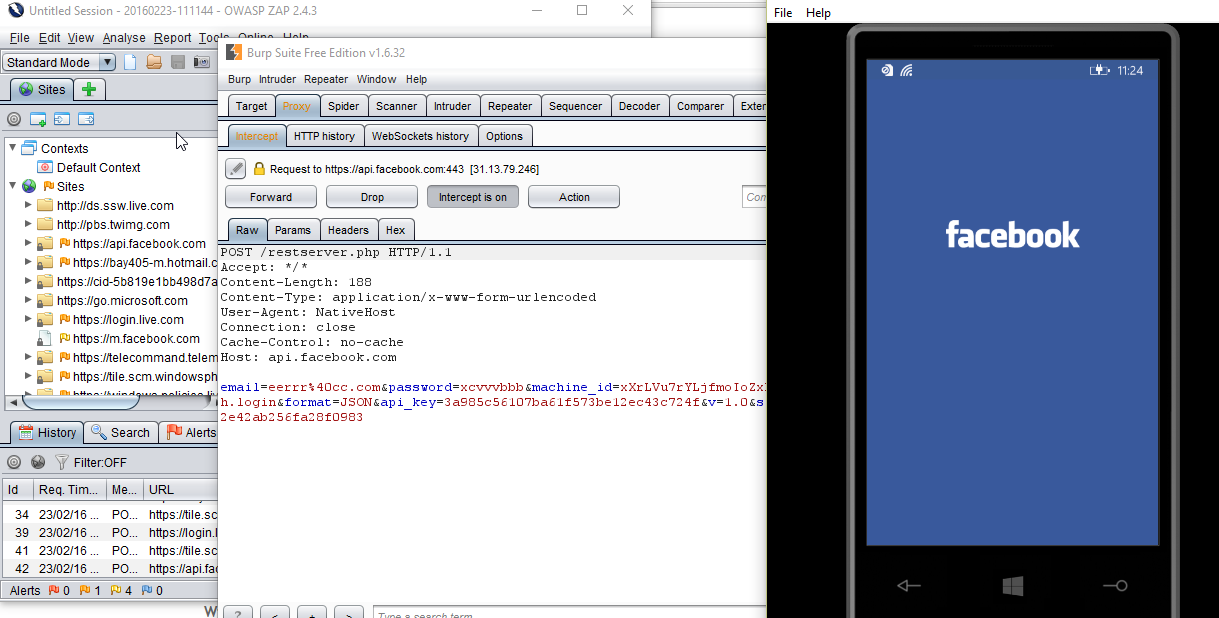
But many time burp certificates are not work properly, in this case you can use ZAP outgoing proxy to divert all HTTP/HTTPS request and response traffic via burp proxy.

Go to Tools > Options (Ctrl+Alt+O) > Connection and use proxy chain.
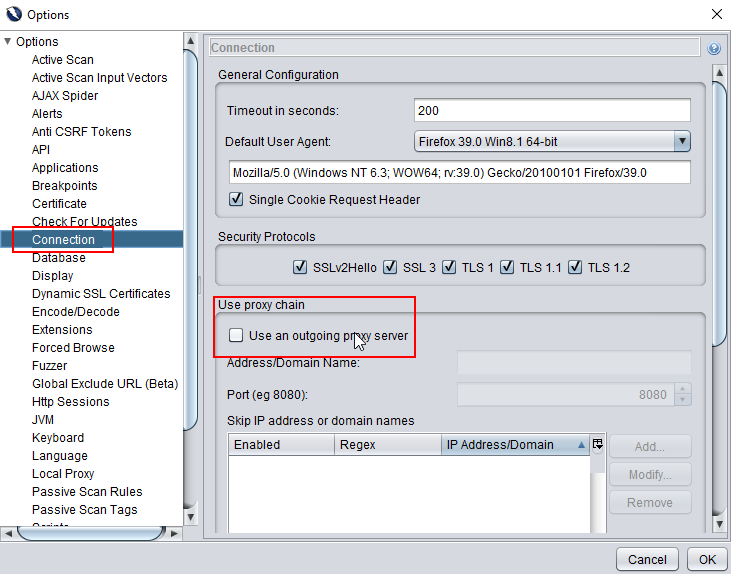

Fig 9. Setup Proxy Chain.
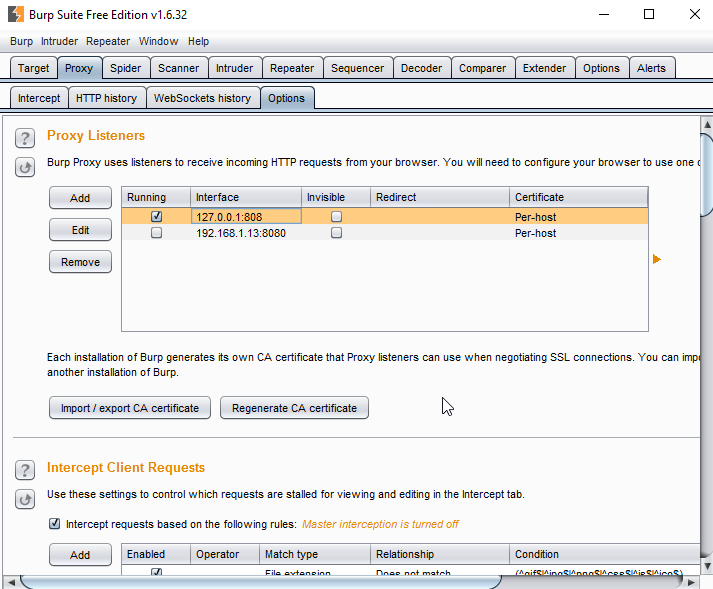
Provide Burp proxy interface in address/Domain and port.


Fig 10. Burp Proxy


Fig 11. Intercept Facebook App HTTPS.

Now you can able to intercept any application in device in order to do dynamic analysis.

Conclusion :


In this article we learned how we setup proxy with Windows Phone and intercept HTTPS request and response in order to perform Dynamic analysis on applications. Next article we learn analysis of Isolated storage or windows internal file system using Windows power tool.

Windows Mobile Application Security Testing - Part 2
Previous article we learned about the windows phone 8 security basics and their features. In this article we’ll going to learn about windows phone 8 applications and sideloading developer signed app in device.


About XAP Files


XAP is the file format used to distribute and install application software and middleware onto Microsoft's Windows Phone 7/8 operating system, and is the file format for Silverlight applications. Beginning with Windows Phone 8.1, XAP will be replaced by APPX as the file format used to install apps on the Windows Phone platform, a move which was done by Microsoft in order to unify the app development platforms for Windows Store apps and Windows Phone apps.

XAP files are ZIP file formatted packages. The MIME type associated with XAP files is application/x-silverlight-app.

Fig 1. Unzipped XAP file 

If you downloaded app from store and wants to unzip then you can’t able to do so. It's because microsoft signed every app with DRM encryption. However if the app is developer signed then you can easily unzip the XAP file.

Encrypted and Unencrypted XAP file

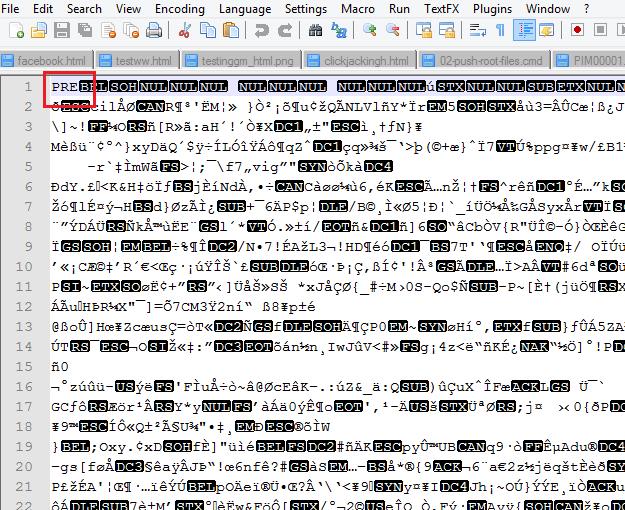
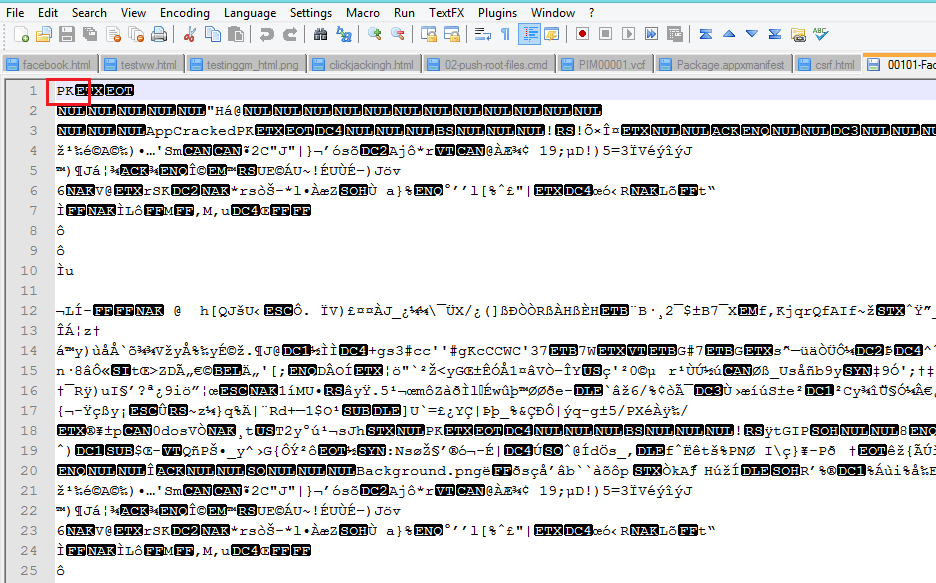
The difference between a XAP file from the app store and an unencrypted XAP can be inspected by opening the XAP file headers in text editor. A limitation of encrypted XAP files downloaded from the app store is that they cannot run in emulators. When conducting penetration tests of a windows Phone application using emulators it's is required to obtain the XAP files of the application compiled by the developer, not from the Windows Store.


Fig 2. Encrypted XAP file
               '
       
Fig 3. Unencrypted XAP file


After some google search I found Youtube XAP unencrypted XAP file from xda-developers forum which help us to understand the Encrypted and Unencrypted applications and difference between them.

Sideloading developer signed app


If you want to perform security testing on your client applications in un-rooted devices then you have to ask them for their developer signed app and by sideloading the App you can able to perform dynamic as well as static analysis.

If you downloaded or installed app from store you will only able to perform dynamic analysis on the app. To perform analysis into internal file system (Isolated storage only) you need to get the developer signed app. Later blog post we will learn inspection of isolated storage.

You can sideload your developer signed app using Application Deployment app which will installed in your system while installing SDK.

Search in your system for “Application Deployment” and open the application. In case you would not found the app then you can use the system path C:\Program Files (x86)\Microsoft SDKs\Windows Phone\v8.0\Tools\XAP Deployment located, where you can run XapDeploy.exe .


Fig 4. Application Deployment App

You can use any developer signed app and sideload app in your device using this application.

Windows Power Tool.


Windows power tool is very useful while doing pentesting on WP8 application. It is developed for the developers to deploy application, testing the app, check isolated storage and other useful functions. You can download this application from codeplex.

However many time I face below error while installing Windows Power tool, may you can also face the same issue.


Fig 5. Windows Power Tool Error 


So it's better to install offline file which you can find from XDA Developer forum. Download the WPPowerToolsStandaloneAmir.zip file and extract the file.

Now run the WindowsPhonePowerTools.exe file.


Fig 6. Windows Power Tool


In order to connect your device with windows power tool you have to unlock your screen and then click on Connect.

After you have successfully connected with windows power tool you can able to install your developer XAPs file and other useful task able to perform for analysis the application.


Fig 7. Windows Power tool feature.


Deploy XAPs easily with WPV Xap Deployer


Project My Screen App


Microsoft has developed application for users to project phone screen to an external display which can using USB cable and connect with system to project phone display on systems.

This app is useful for us while doing pentesting on Windows mobile application to get the display on our system.

You can download application from Microsoft site Project My Screen App


Fig 8. Project My screen Application.


Conclusion :

In this article we understanding of how WP8 applications are packaged and distributed. Also we now know the sideloding developer signed app into device. Next article will learn how will do dynamic analysis on WP8 application using Device.

Powered by Blogger.